
UX audit
I used Leo like an engineer would
Conversation is the standard for AI, but mechanical engineers use different tools daily: CAD files, drawings, and datasheets. Is Leo intuitive for different types of users?
Before looking at customer data, I did a UX audit on Leo by using it on a real task: redesigning a drill assembly to cut handle vibration.
Testing the product firsthand left me with three hypotheses about where engineers might get stuck:
1. The starting point was unclear to me
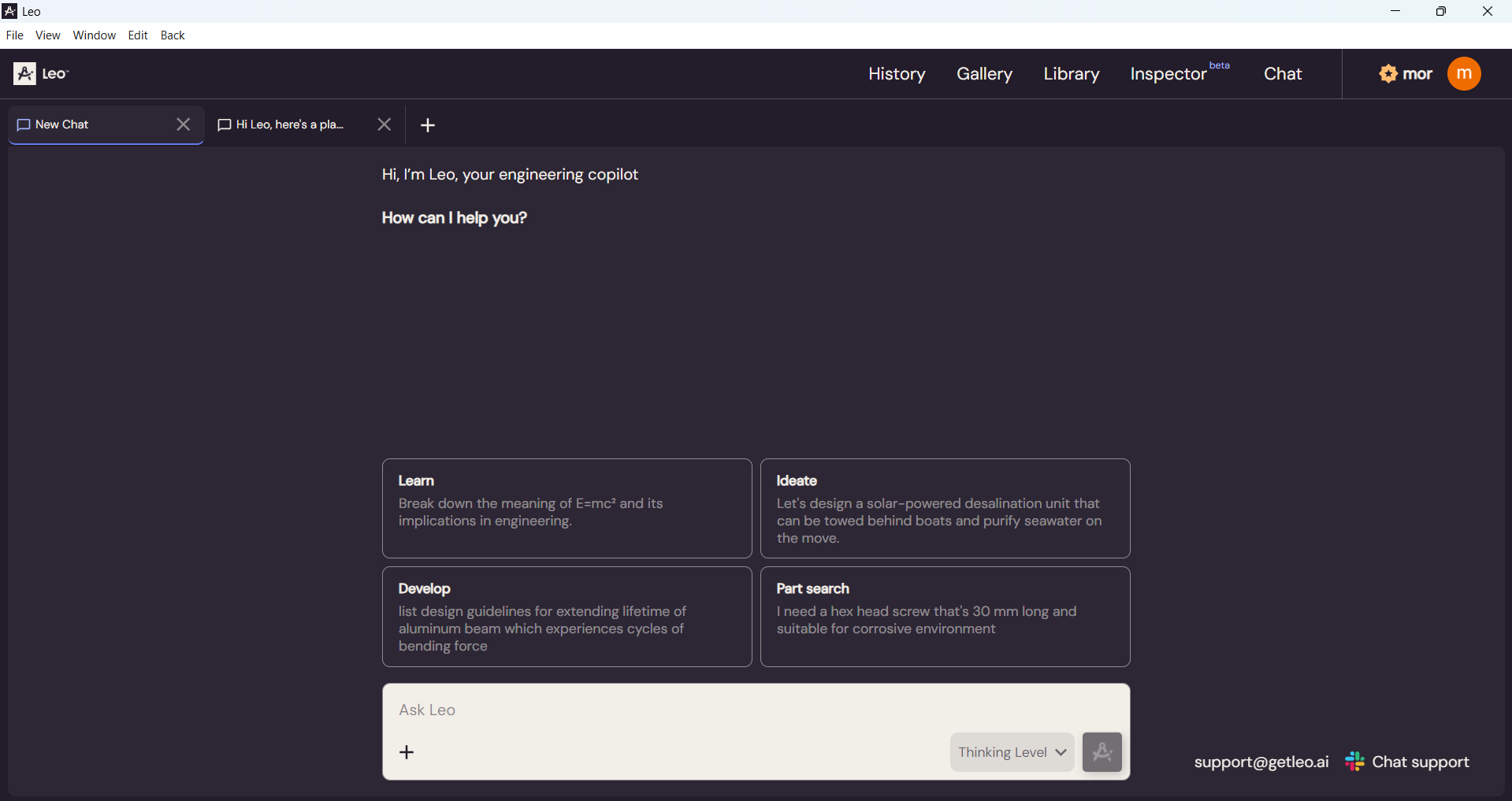
The empty state offered four examples (Learn, Ideate, Develop, Part search). I wasn't sure whether those were sample text examples or available actions, and how they map to the engineering job at hand.
2. Limited visibility into progress and assumptions
What does Leo still need? What is already understood and what assumptions are being made? This information was available in part when scrolling through the chat, but it wasn't always easy to find, especially as conversations grew longer.
3. Outputs were woven into the conversation
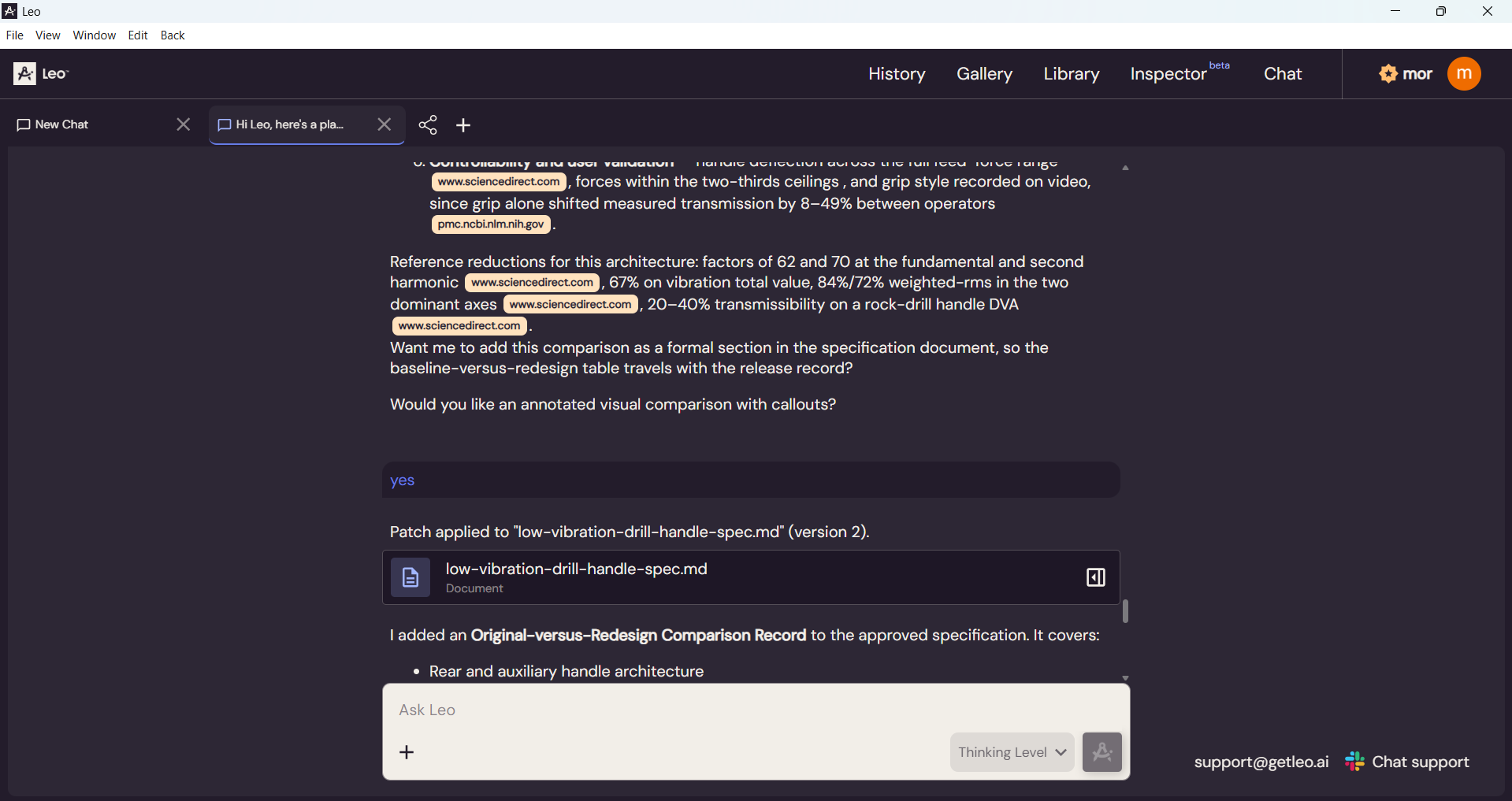
Files Leo created, like CAD models and spec documents, only lived inside the chat. Finding those could mean scrolling back through long answers.
Before: the empty state
Before: an output woven into a long answer
Customer feedback
Users were asking the same questions
Next, I checked my hypotheses against real user feedback. The PM and customer success team had collected more than 50 statements from customers, through written feedback and conversations.
Users were in fact confused about the same things:
Where do I start?
"Should I do it through Leo or should I do it through Onshape?"
"We didn't understand there is a difference between Inspector and chat."
What is Leo assuming?
"It only allowed 90-degree bends… I had to correct it."
"It went out to Wikipedia instead [of] the document with ISO standards."
Where did my work go?
"I don't know how to see where [my] prompts [are]… I don't see any history."
"How do I go back to where I was?"
The redesign - a working prototype
From an open chat to a guided flow
To uncover top user needs, I interviewed the PM and customer success team. We prioritized three core jobs: Edit, Create, and Inspect. In addition, I suggested a customizable flow library so companies could choose which flows to display.
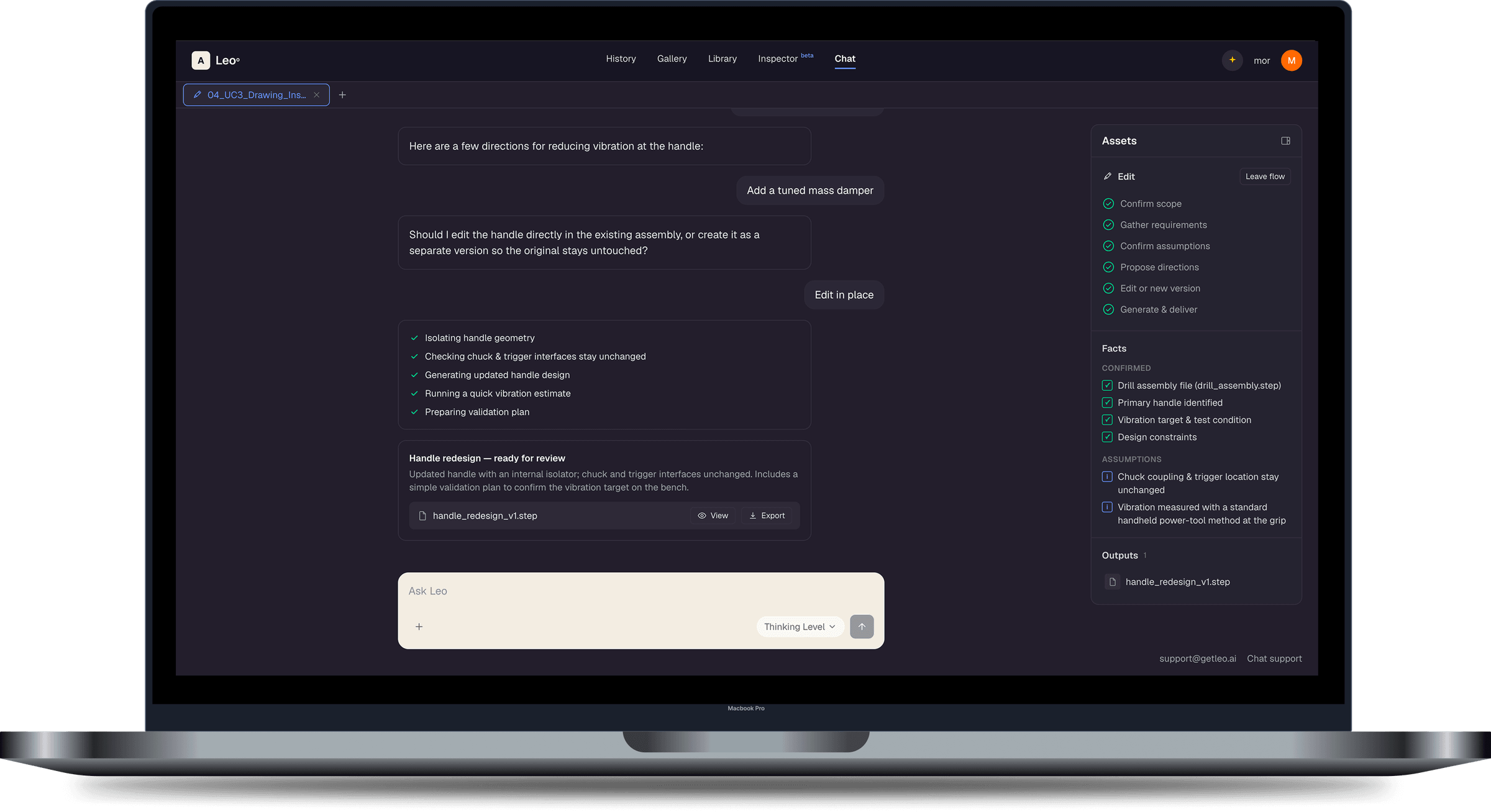
I turned Leo's open-ended chat into guided flows built around these jobs using an AI prototype. A new sidebar keeps the flow's progress, Leo's assumptions, and every output in view, so users always know where they are, what Leo is working with, and where to find their results.
And in more detail
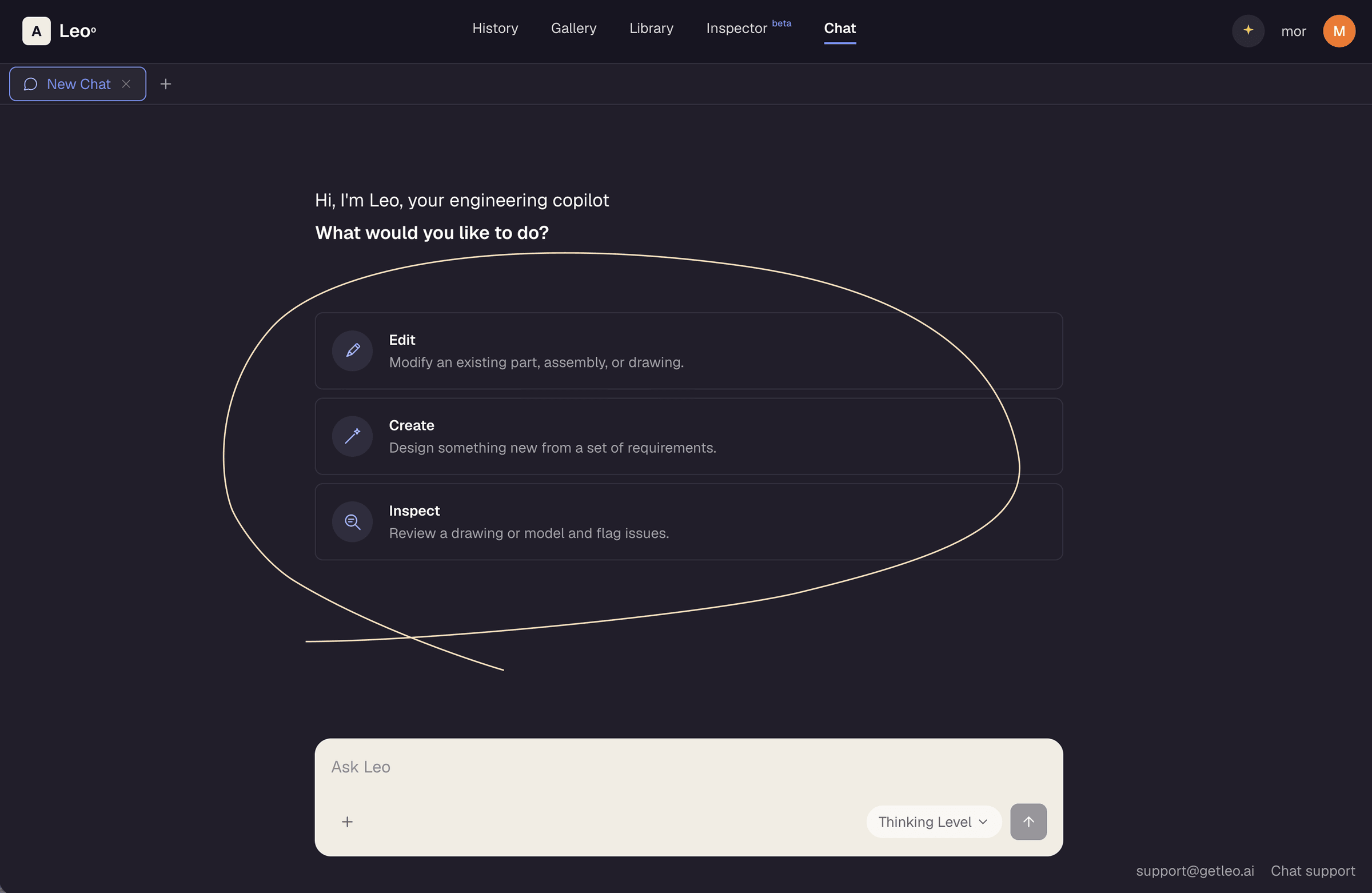
Three clear starting points
By asking users what they want to do, I guided them straight to the value Leo offers. Three clear paths (Edit, Create, and Inspect) match the main jobs engineers use Leo for, so users can see right away what's possible and start without having to think about how to phrase a request.
I put an emphasis on designing them as clickable options for better flow and ease of use.
The chat box is still available for anyone who prefers to type, so every user has an easy way in.
A guided flow, with a way out
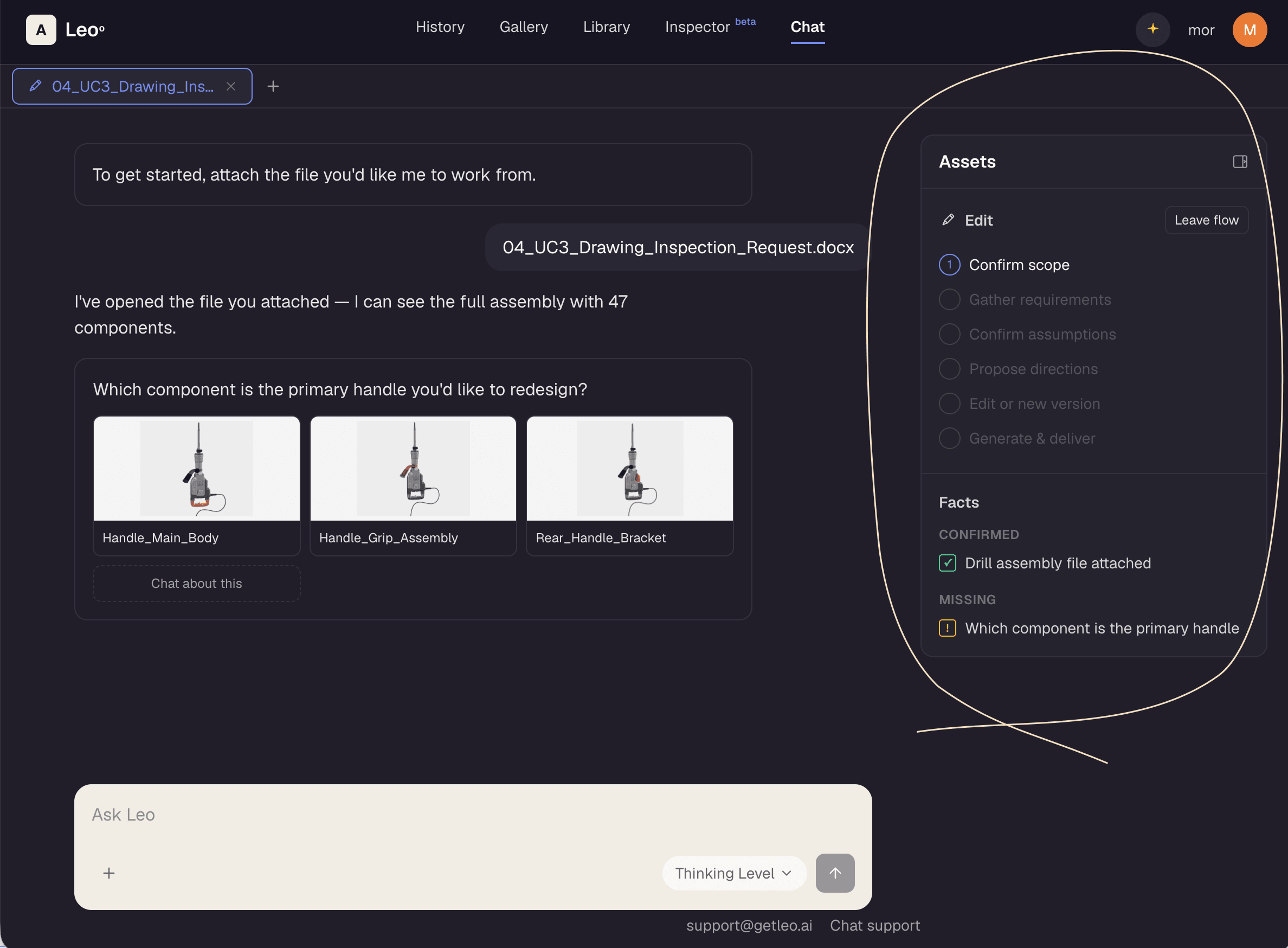
Since each flow follows a consistent structure, Leo can show users exactly where they are in the process and what comes next. The experience is more predictable, and Leo's features are more visible.
The new sidebar keeps this progress visible at all times. Each step is clickable, so users can move around the process easily instead of scrolling back through the chat.
If a flow no longer fits the user's needs, they can leave it at any point and continue the conversation freely without losing any context.
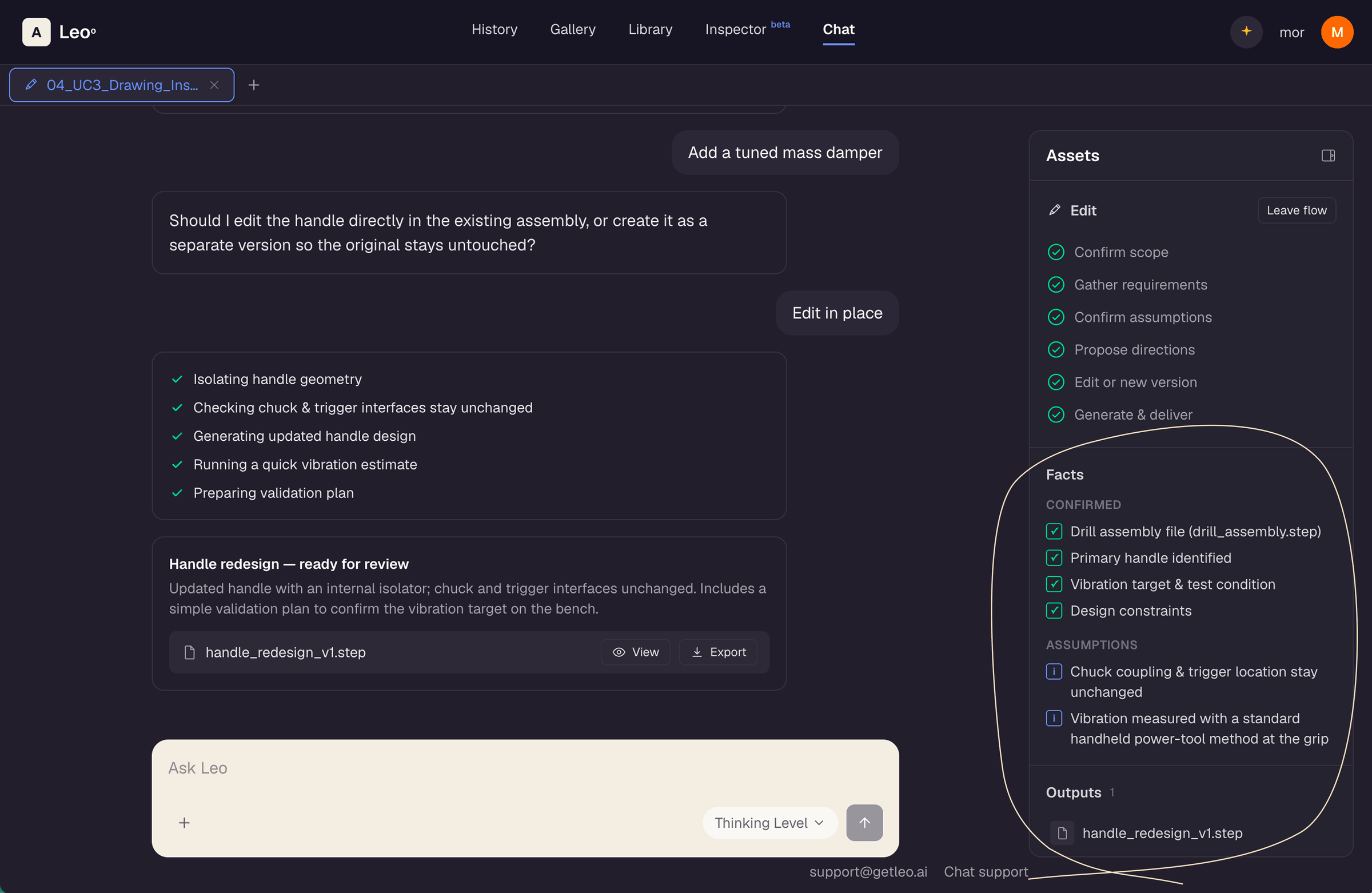
Assumptions and outputs, always visible
Some of Leo's assumptions get confirmed along the way, and others may need checking later. Seeing them clearly helps users understand what each output is based on, and what still needs a second look.
The output files, like documentation and design files, are often the reason users open Leo in the first place. The new sidebar keeps them within reach so they're available without scrolling through the conversation.
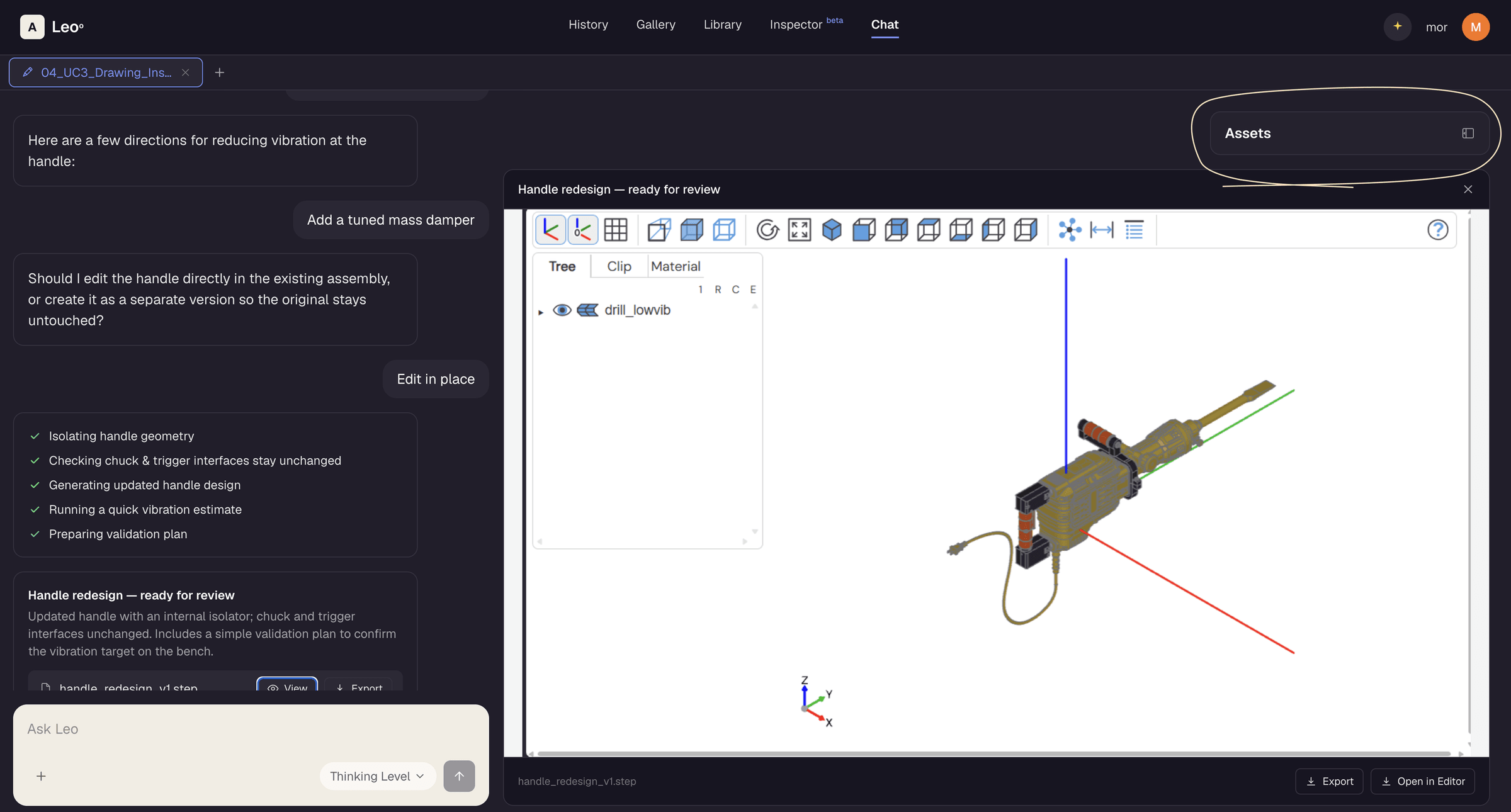
Room for the model
The user doesn't lose context or location when a CAD model opens in the preview. The sidebar folds away to give it space but still remains available.
Final thoughts
Leo's power was already there, my role was to make it easier to reach.
Using my own audit alongside user feedback, I brought structure to Leo's open chat interface.
I added guided flows, visible progress, and quick access to outputs - giving engineers a clear way to start without taking away their flexibility to explore.
More case studies
AI Design pipeline
Using Claude Code skills to go from idea to prototype to a workable Figma file.
Read case study →
Enterprise UXIgnore approval workflow
Providing application security engineers with more control over issues being ignored, and developers more agency in ignoring them.
Read case study →